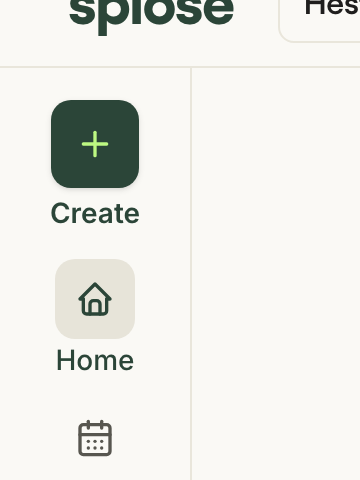
The Create button
One button, in the left navigation, available from every screen.
From it you start a capture, a progress note, an appointment, a payment or a task in one click. The most important actions should never be more than a click away, wherever you are. A top bar cannot hold them as the product grows, so they get a permanent, scalable home in the left rail.
 Open in the prototype
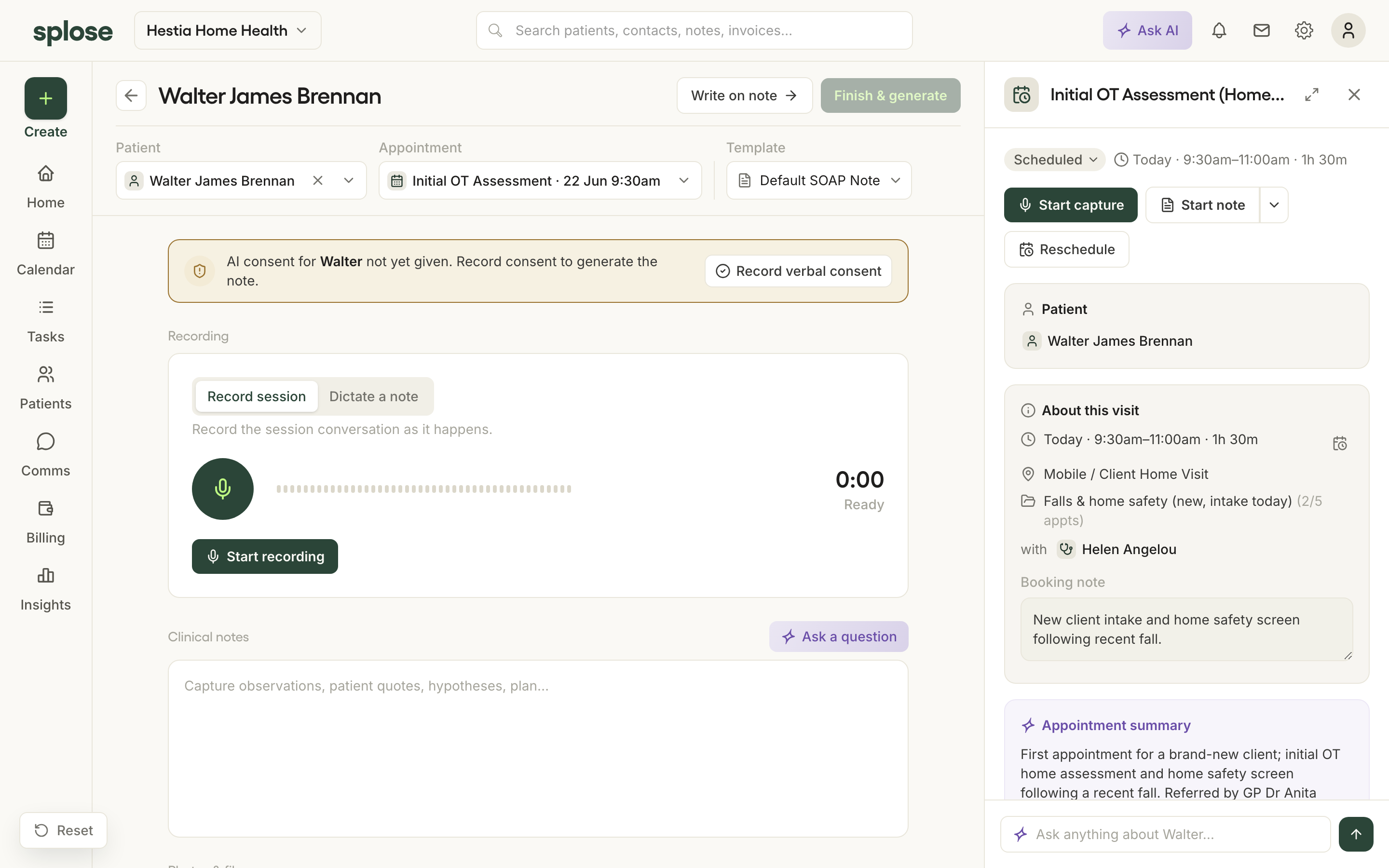
Capture first, link later
One tap to record, from anywhere. The patient and template attach afterwards.
You record the visit, and the patient, appointment and template link afterwards, often suggested automatically based on the time and your calendar. Find any unlinked captures through Tasks or the Unlinked captures section in the practitioner's profile.
 Open in the prototype
The capture page
A full-page workspace for a capture.
It holds the recorder (record a session or dictate a note), space for typed notes, and photo and file attachments, with the patient and appointment context alongside once linked. A recording alone is not always enough: you can add the clinical detail you would rather not say out loud, a photo, or a file, so all of it informs the draft. That is why it is a capture, not just a transcription. If you leave the page mid-recording, the recording keeps going, docked, and you can return without losing anything.
Open in the prototype
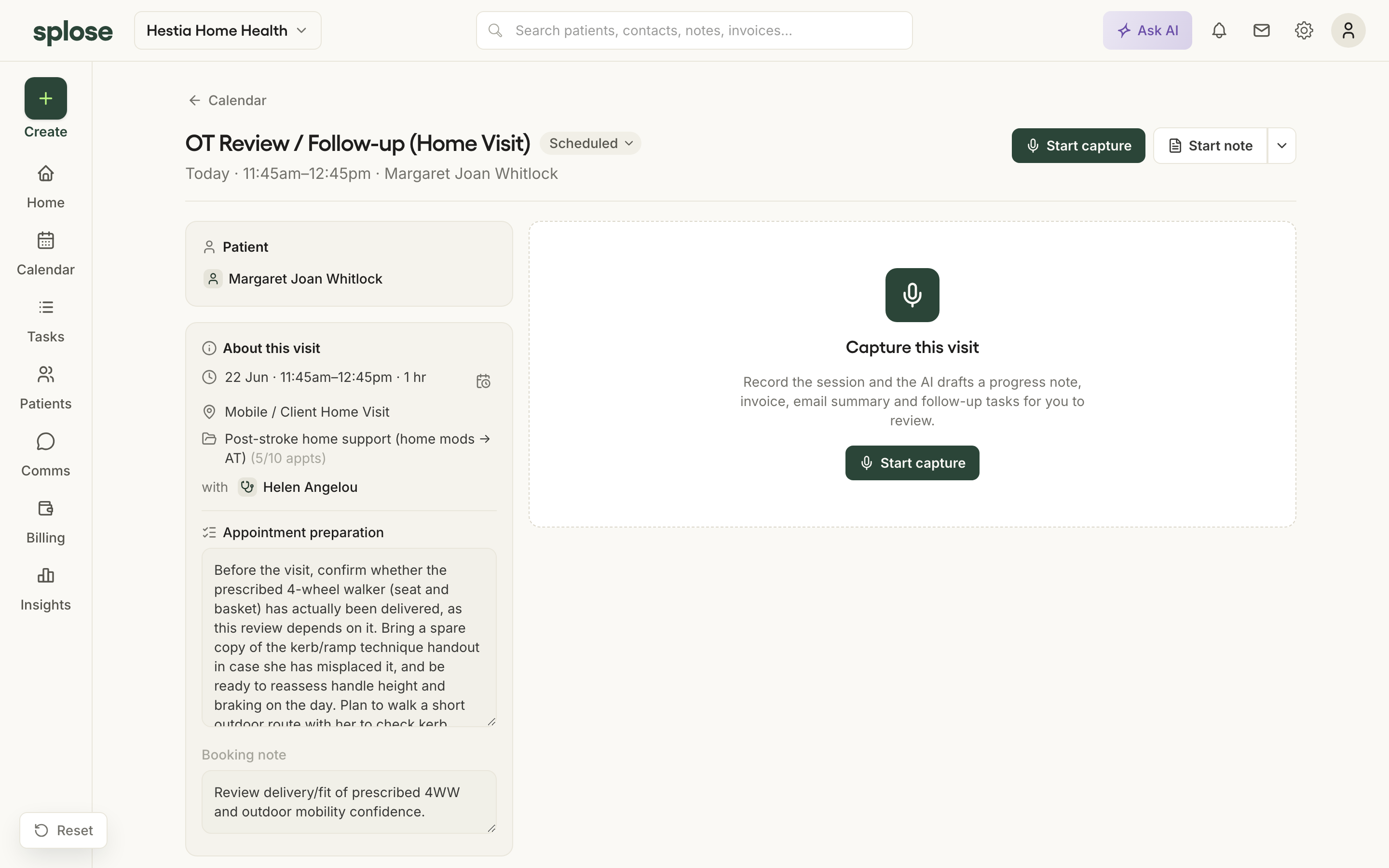
Generated, not prompted
A draft appears by default, instead of a blank box.
The draft is already there, and the actions you take most often are clear buttons that do a known thing. Preparation works the same way: a pre-visit summary is assembled before you ask.
 Open in the prototype
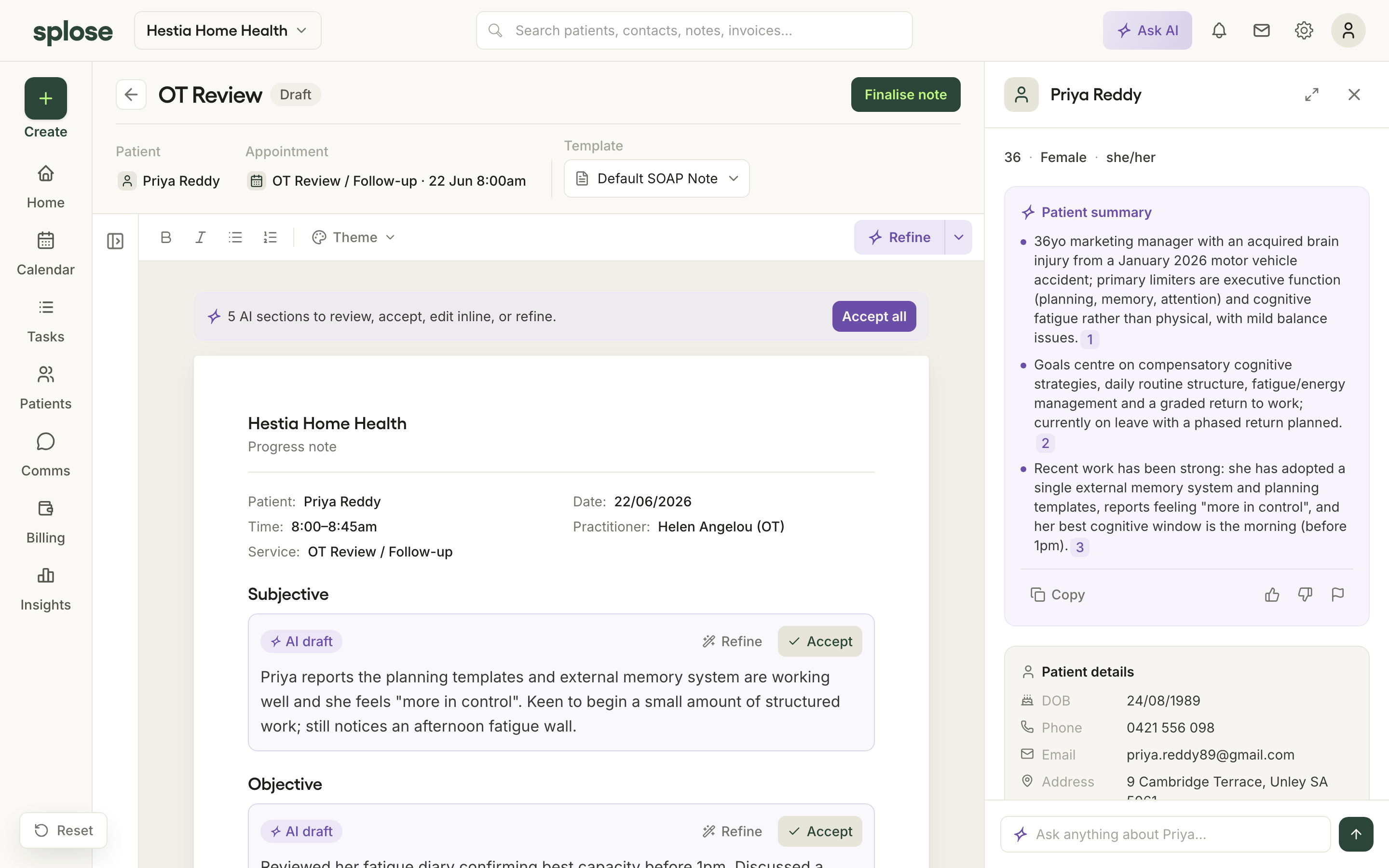
The note editor: review, not write
A clinical document you check section by section.
The note is an A4-style page with the practice letterhead. AI-drafted sections carry a badge; you accept them, edit inline, or ask for a section again. You can refine the whole document, a single section, or just a highlighted phrase, so changing one line never re-drafts the lot. Adjust the tone or length once and it is remembered as your voice for next time.
 Open in the prototype
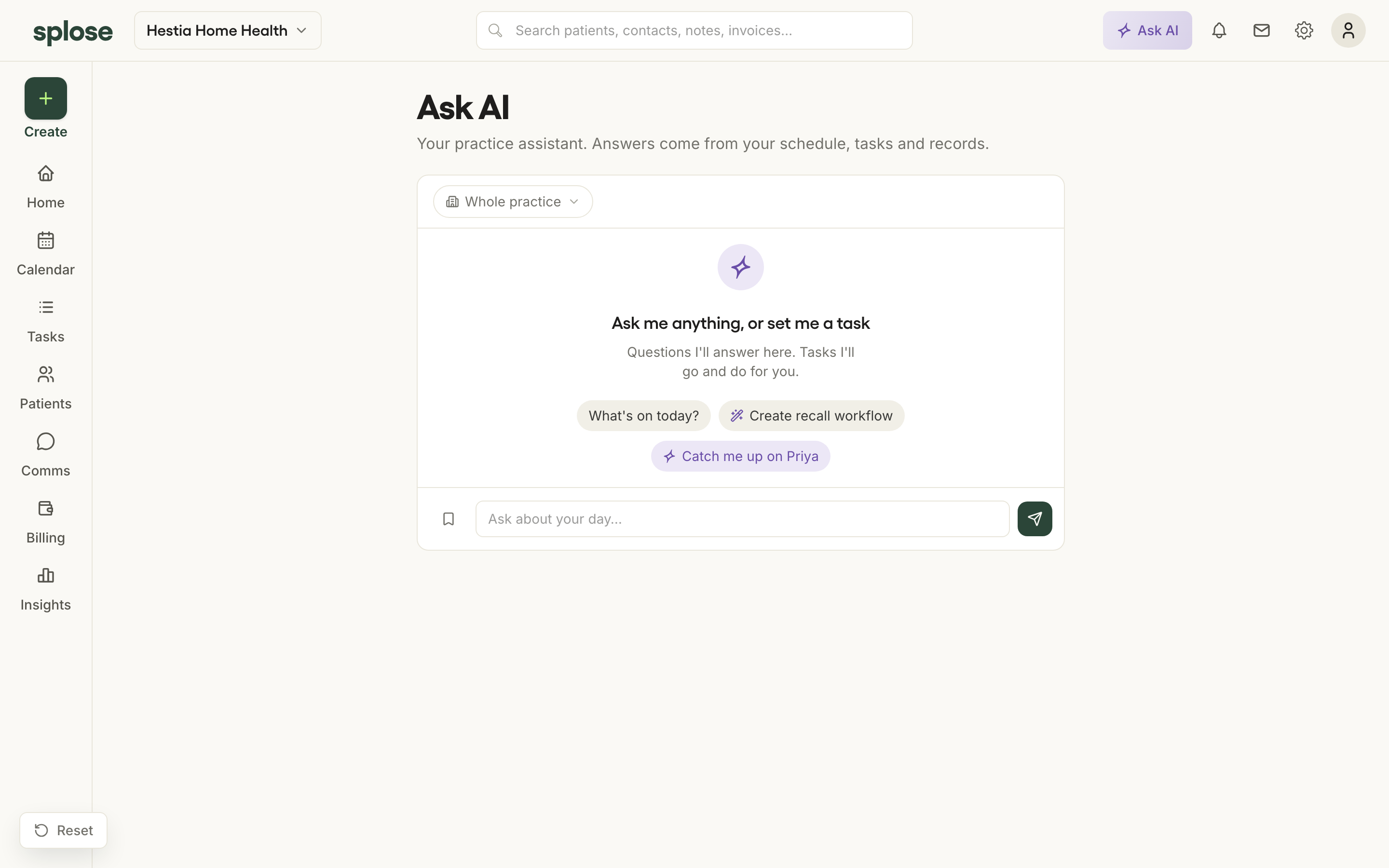
Ask AI: ask a question, or set a task
Plain-English answers from the patient's own record, and actions that open for review.
Ask AI answers questions from the real record ("Catch me up on Priya"). It also takes actions: when you ask it to do something, it does it and opens the result for you to check. You can scope it to one patient or the whole practice, and reach it from anywhere.
 Open in the prototype
Pre-visit summaries
The catch-me-up is ready before you walk in.
On an established patient, a short summary of recent visits is assembled automatically and shown on the appointment, so you arrive knowing where you left off.
Open in the prototype
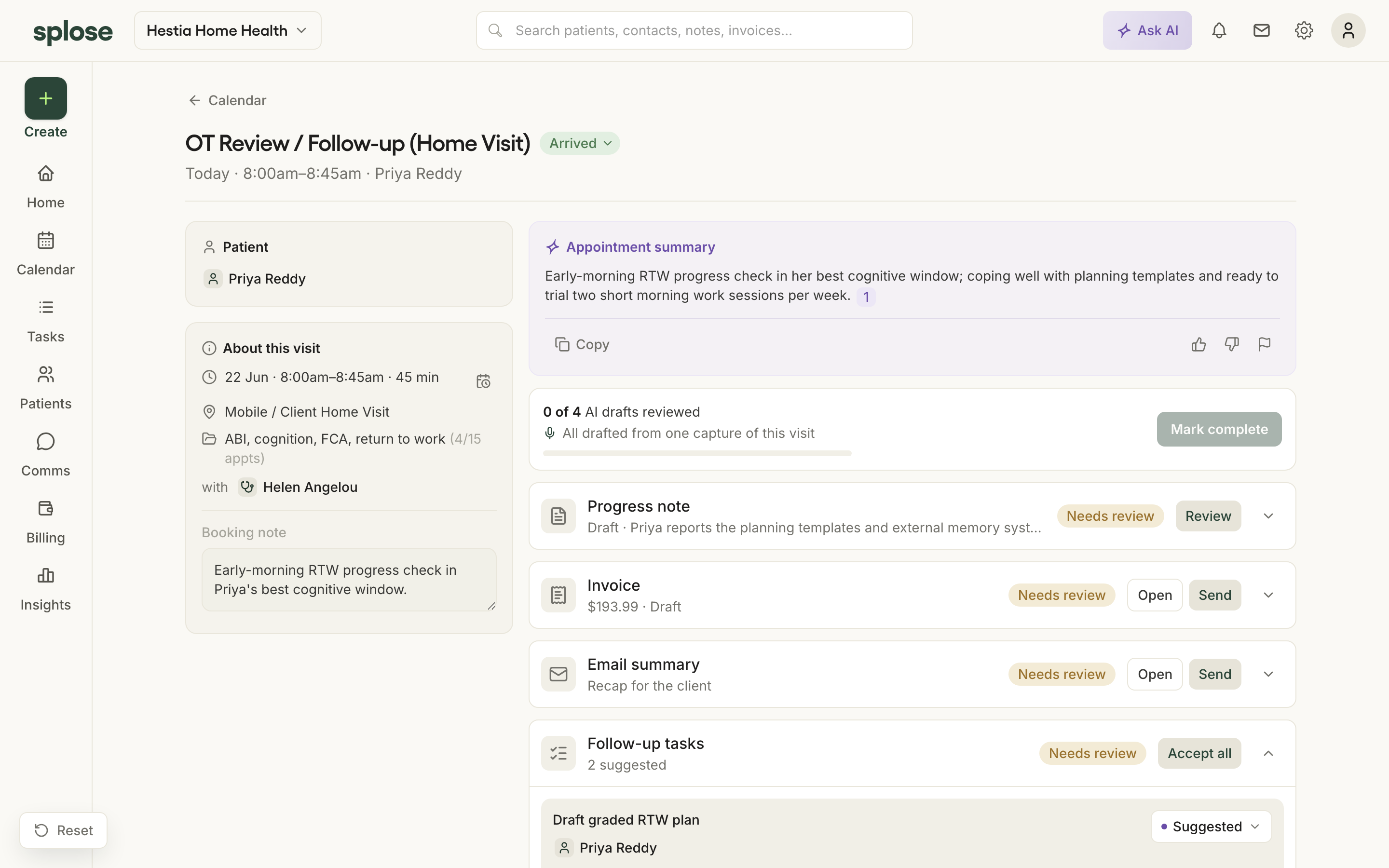
The bundle: note, invoice, email, tasks
One capture produces the day's paperwork, not just a transcript.
A single capture drafts the progress note and the invoice, a short email summary, and follow-up tasks, each an independent draft with its own review state, gathered on the appointment so you can see how many drafts are left to check. Suggested tasks are pulled from what was said.
 Open in the prototype
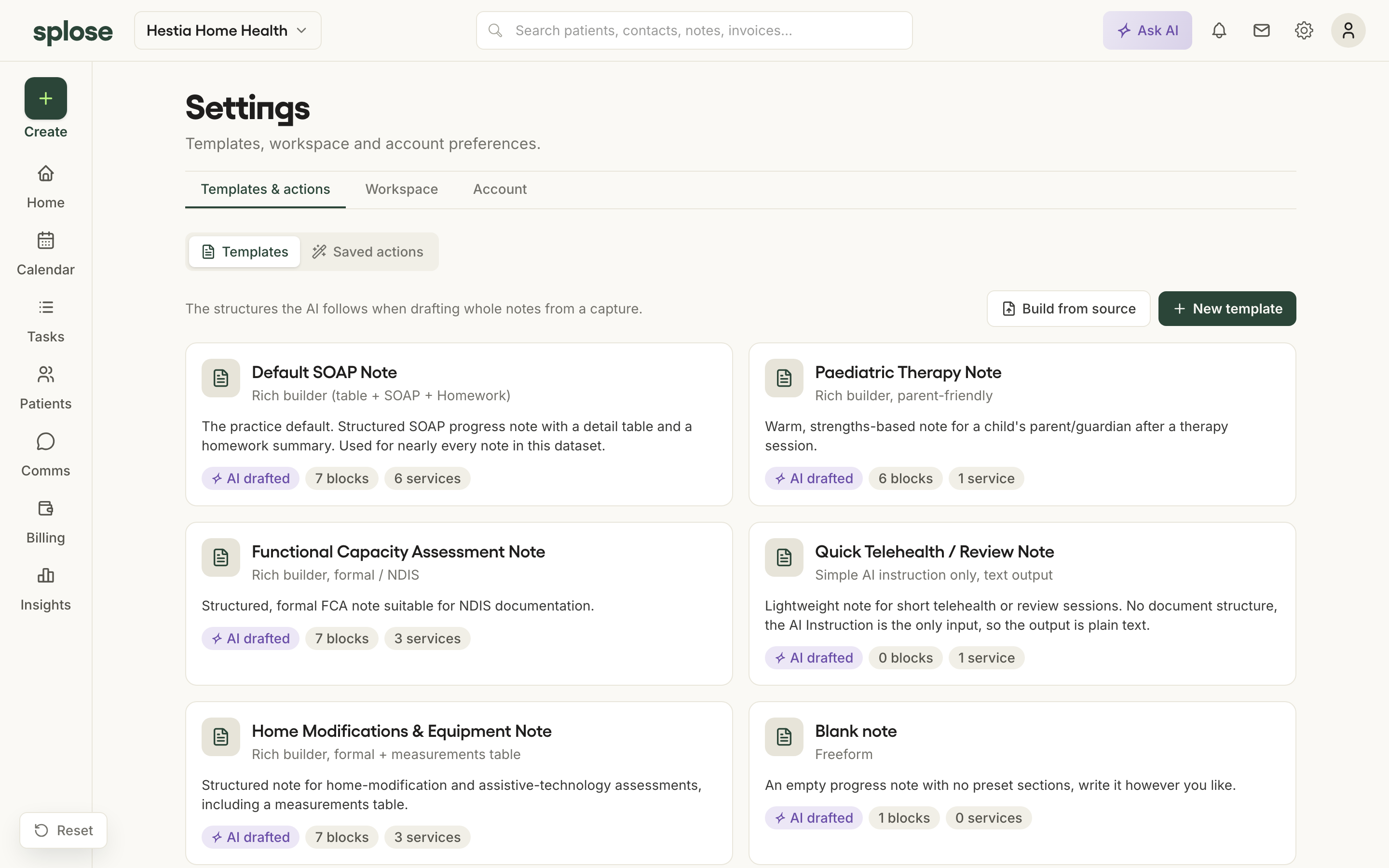
Templates: one system that writes the note
The template carries the AI, so it drafts the whole note.
A progress note template is what produces the draft. At its simplest, a template can be a single overall AI instruction. When you want more control, you build it from prescriptive blocks, choosing each section, its content type and formatting, paired with overall instructions so you are not repeating "use dot points" in every block. Switch the template on a note and the whole document re-drafts. When you finalise a note you have edited away from its template, the app offers to push those changes back to your template.
"It's just the setup, and it's been time-poor to have enough time to focus on making sure it's refined." — Kane, on the old way
 Open in the prototype
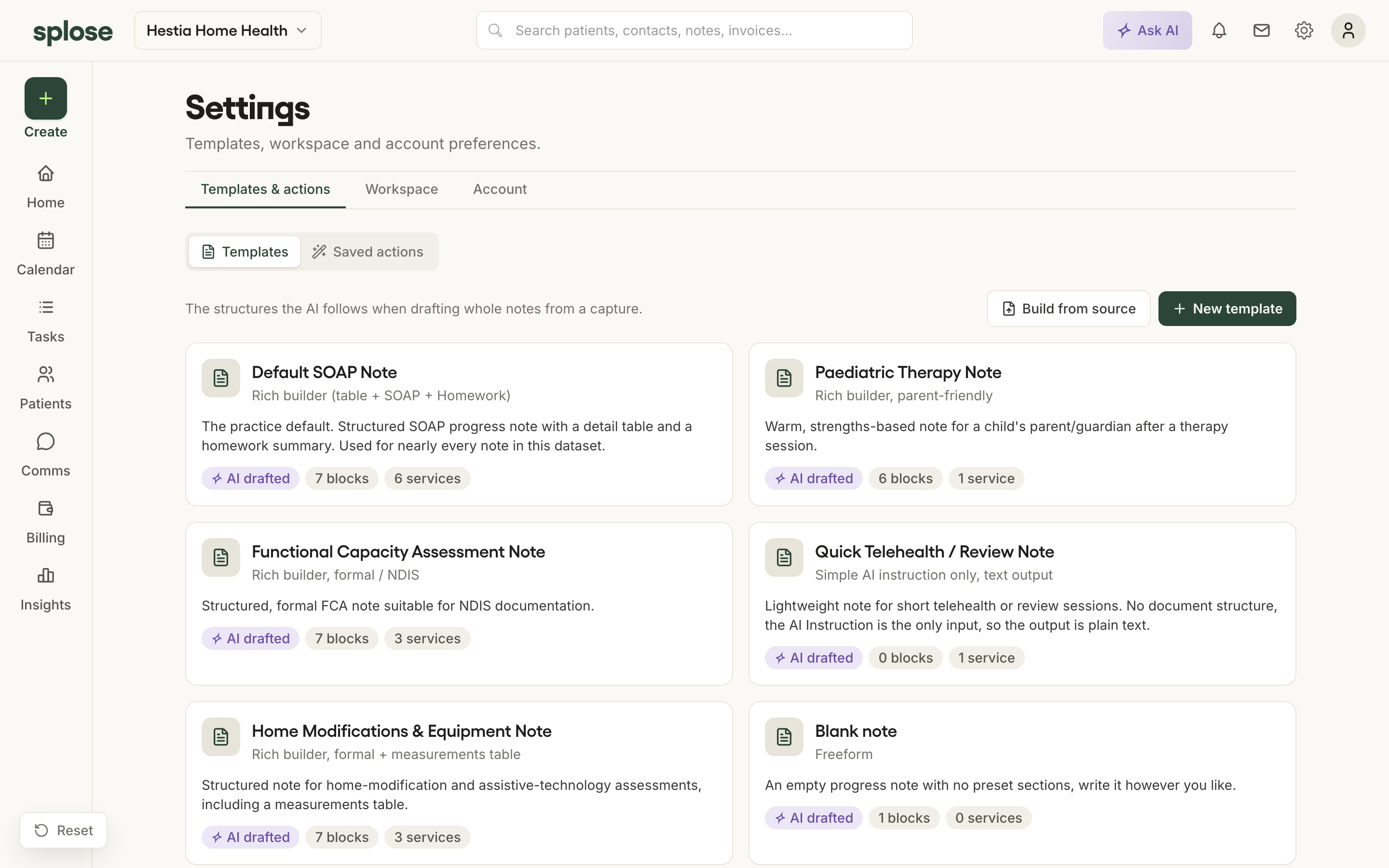
The template builder
Build a template yourself, or let AI structure it from something you already have.
You can build from a source, upload a PDF or pick previous notes you like, and let AI structure a template from them. You can let AI work from a written instruction, or use the builder to lay it out yourself. In the builder, a live A4 preview sits in the middle, settings on the left, and a drag-and-drop panel of blocks on the right: structural blocks, and AI-powered ones (an empty AI block, a library of well-written AI blocks, or smarter elements like an AI table or image). Only the AI ("purple") blocks change when a note is drafted.
 Open in the prototype
Consent-aware AI
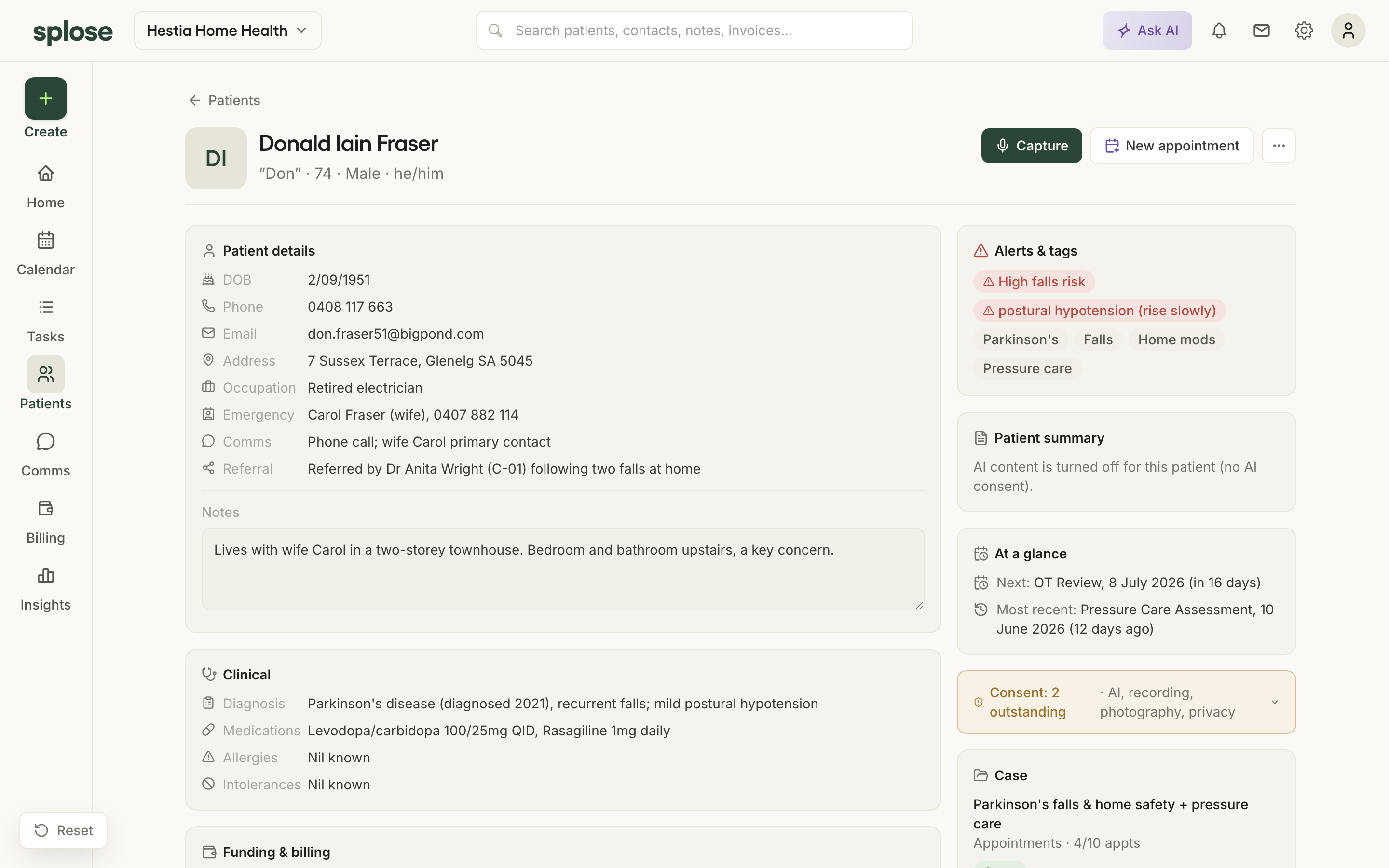
Where a patient has not agreed to AI, the assistance steps back.
Consent is a first-class rule. For patients who have declined AI, the AI content is suppressed across their record. For a new client whose consent is pending, the app asks you to record verbal consent before it will generate.
 Open in the prototype
Tasks: the proactive layer
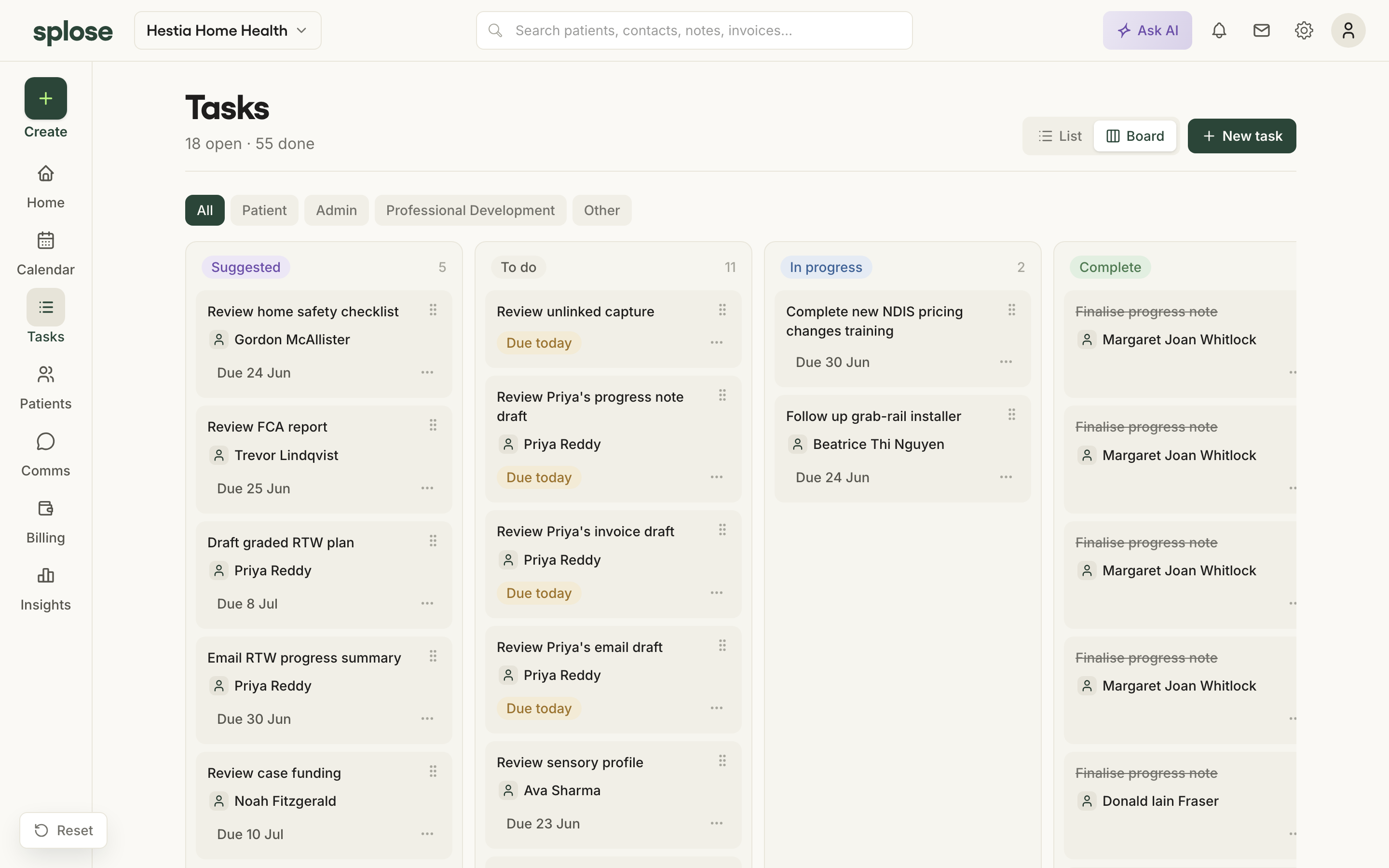
The follow-ups suggest themselves, and finalising a note closes its task.
Tasks sit on a board and a list. Some are automatic, some are AI-suggested from what was captured ("Order adapted cutlery for Raymond"), which you accept or reject. Finalising a note completes the review task waiting on it.
 Open in the prototype
The dashboard
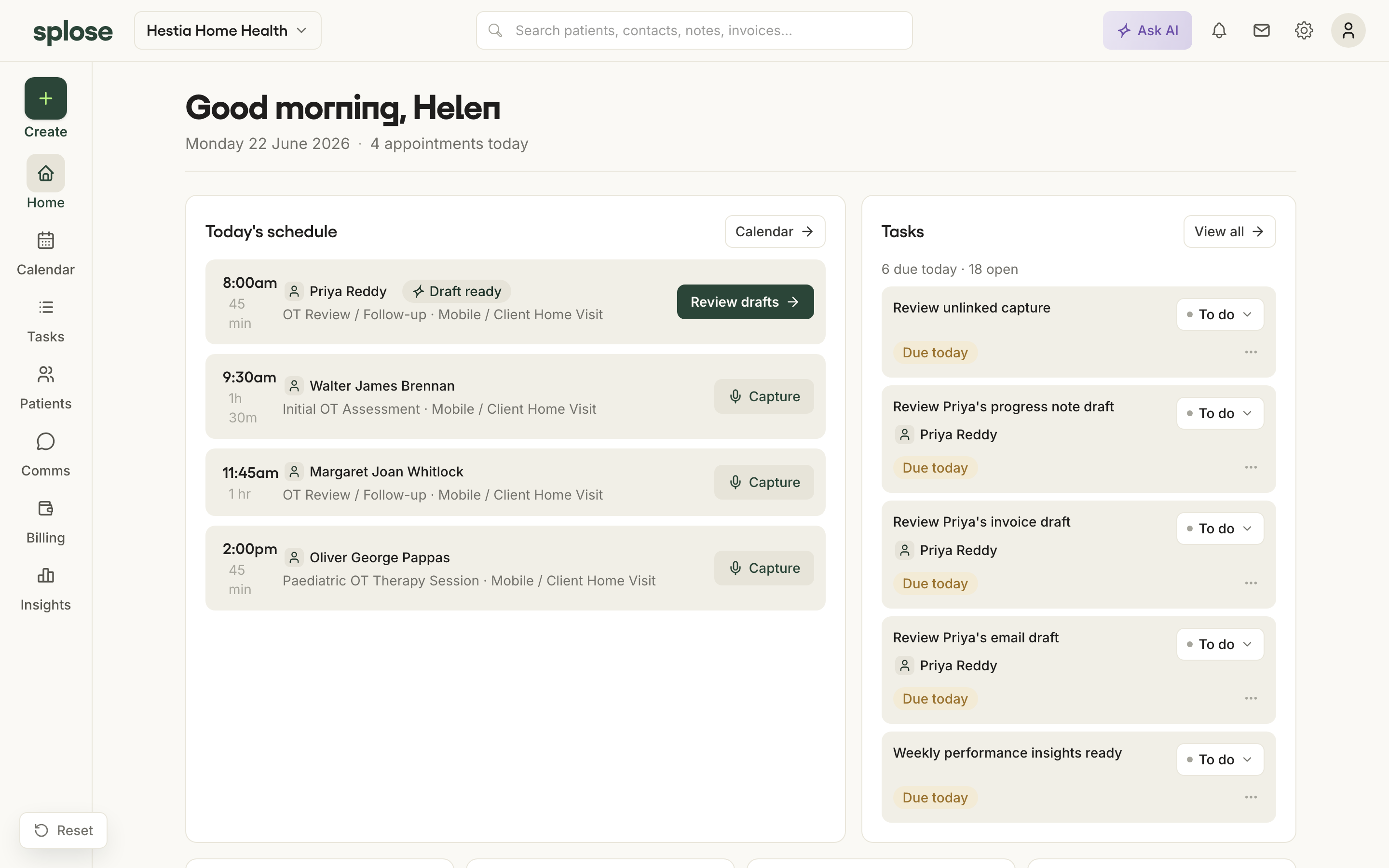
A home screen framed on today.
The day's schedule with a clear action on each appointment (capture, or review drafts when one is ready), the tasks waiting, and a few practice stats.
 Open in the prototype
Search
A global search bar, available from anywhere via the left navigation.
Finding a patient, an appointment or a note quickly matters as the product grows, and today's splose notably lacks a global search. Making it always-available is part of building room to grow.
 Open in the prototype
The workspace dropdown
A workspace menu in the top bar for switching between workspaces, much like Slack.
Practices and disciplines may run more than one workspace, so switching has a clear, familiar home. It also signals the product is built to scale beyond a single solo practice.
 Open in the prototype
The design system
Calm, sophisticated, clinical, on a base that can grow.
Restrained visual language: splose dark green as the single action colour, neutral chrome, meaning carried by a few tag colours, generous whitespace, Yellix for headings and numerals, sentence case. The note is a document, because that is what clinicians trust.
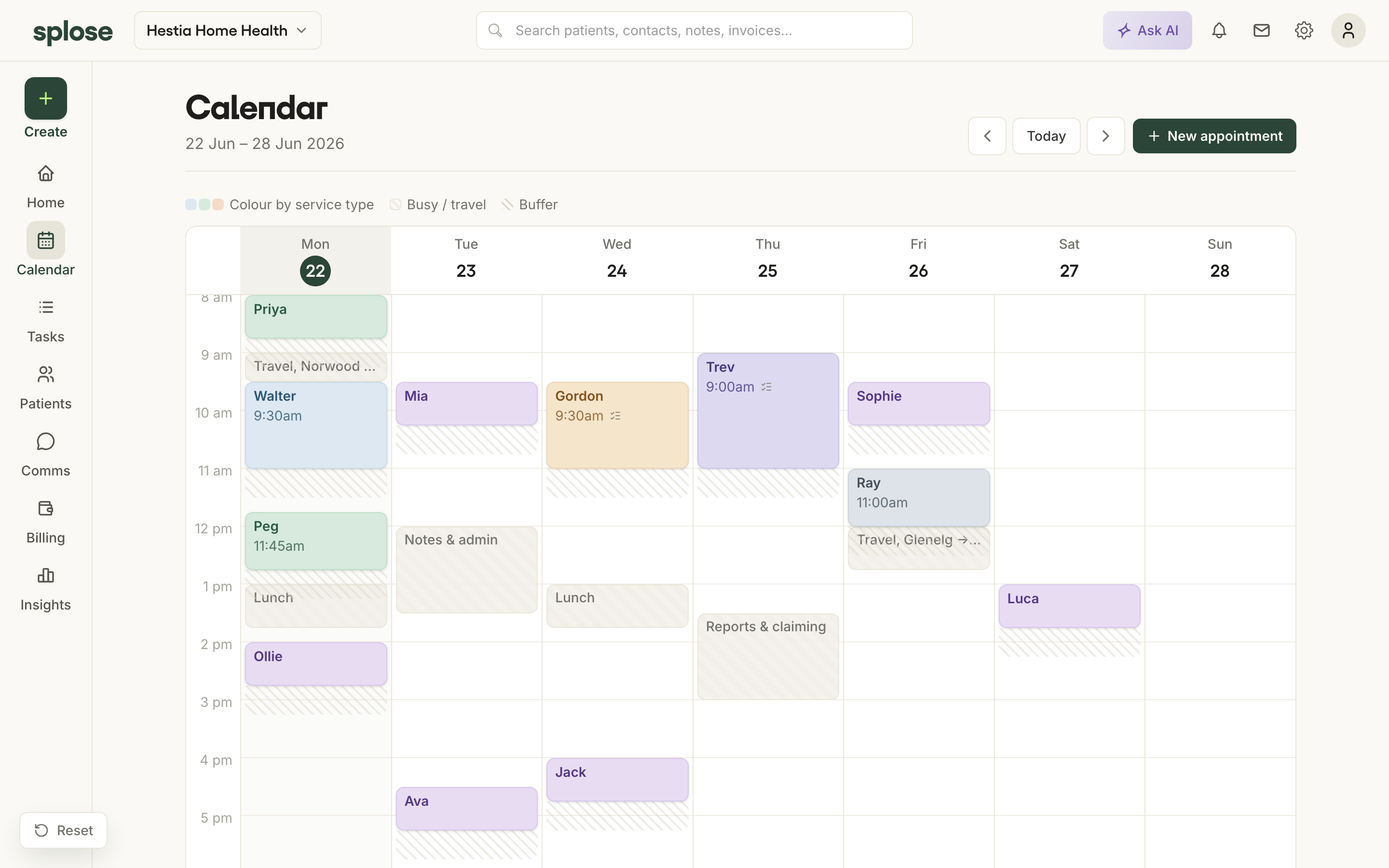 Open in the prototype